




Most merchants choose a Shopify inventory scanner on price, then find out too late it doesn't work across locations or explain why a count changed. The decision really comes down to your priorities.
We hear the gap constantly: merchants who won't trust a stocktake until the scanner shows why a number changed, not just what it changed to.
We share how Shopify’s native scanner works, why greater accuracy often requires going beyond it, and how to choose the right scanning solution.
What is a Shopify Inventory Scanner?
A Shopify inventory scanner is any tool (built-in, hardware, or app) that reads a product's barcode and uses it to update stock counts in Shopify.
There are three flavors of this:
- Shopify's native scanner: free, lives inside the Shopify mobile app, uses your phone's camera.
- Barcode scanner hardware: a physical device (USB or Bluetooth) that reads faster and more reliably than a camera, usually paired with an app.
- Third-party scanning apps: dedicated inventory or stocktake apps (Prediko, EasyScan, syncX, and others) that add consequent workflows like purchase order receiving, discrepancy tracking, and multi-location counts on top of scanning.
Which one you need depends on how often you're counting, how many locations you run, and what you want to do with the count once it's done.
How Shopify’s Free Scanner Works and Where it Falls Short
Shopify's built-in scanner lives in the Shopify app's Products menu. Open it, tap Scan Inventory, point your camera at a barcode, and it either increases that product's count by one or lets you adjust the quantity directly.
It works on iOS, iPadOS, and Android, and it costs nothing beyond having the app installed. For a single-location store doing the occasional spot check, that's genuinely enough.
However, the problem is that it doesn't scale with you.
- It's built for one-off adjustments, not a structured, trackable stocktake.
- There's no discrepancy log; you don't see why a count changed, just the new number.
- It doesn't distinguish between counting error, damage, or theft.
- It has no purchase-order-to-scan workflow, so receiving a shipment and counting a warehouse are two disconnected tasks.
- The scan data goes nowhere. It updates a number in Shopify and that's the end of its life. It doesn't feed into what you reorder next.
If you're running one store, one location, and counting stock every few weeks, the native scanner will do.
If you're managing multiple warehouses, running regular stocktakes, or trying to replace Stocky before Shopify shuts it down, you'll hit its ceiling fast.
Barcode scanner hardware that works with Shopify
Your phone camera can scan a barcode. It's just slower and less reliable than purpose-built hardware once you're counting hundreds or thousands of SKUs.
Shopify officially supports:
- Zebra DS2208 (USB): scans 1D and 2D barcodes, wired, supported on Android.
- Socket Mobile S740 / S720: scans 1D and 2D barcodes over Bluetooth, pairs directly with Shopify POS.
When to upgrade from a phone camera to hardware: if your team is scanning for more than a few minutes at a stretch, working in a warehouse with poor lighting or reflective packaging, or running counts often enough that ergonomics start to matter. A dedicated scanner also handles damaged or worn labels better than a camera does.
When a phone is fine: low SKU counts, occasional counts, or a team that's already moving between aisles and doesn't want to carry extra hardware. Most third-party scanning apps, including Prediko, support both. Pair a barcode scanner for speed, or use a mobile device camera when your team needs to move.
What to look for in a Shopify inventory scanner app
Each barcode scanner offers a different set of features. Before you pick one, check it against these:
- Real-time Shopify sync: counts should push to Shopify immediately, not on a delayed batch.
- Multi-location support: you need counts tied to the correct warehouse or store, not one global number.
- Discrepancy tracking: the app should show you what changed and let you flag why (damage, returns, counting error).
- Flexible counting methods: scan, import a spreadsheet, or type counts in manually, depending on how your team actually works the floor.
- Purchase order and receiving support: scanning shouldn't be limited to counts; it should also speed up receiving stock against a PO.
- What happens to the data after: this is the one most merchants skip. A scan that only updates a count is a wasted opportunity. The best tools connect that data to reordering and forecasting, so a stocktake actually improves your next purchase order.
Best Shopify Inventory Scanner Apps in 2026
Choosing the right Shopify inventory scanner app can make stocktakes faster, more accurate, and easier to audit. Below, we compare some of the best options.
1. Prediko
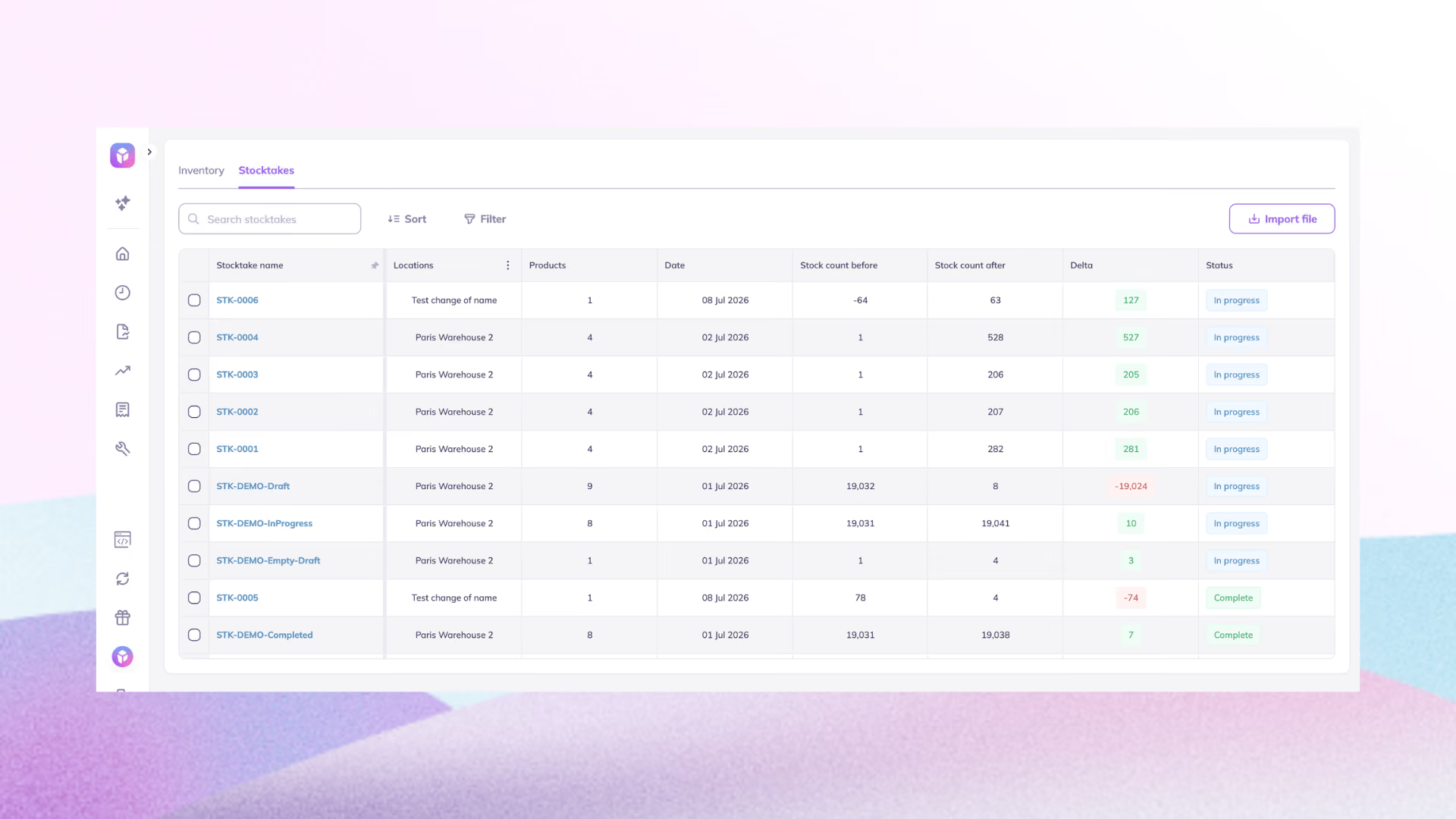
Prediko’s inventory management app recently launched a Stocktake & Inventory Scanner, built to replace ad hoc, error-prone stock counting with clipboards, disconnected spreadsheets, and native scanners that provide numbers without context.
What makes the app unique is that scanned and synced stock levels feed directly into demand forecasting, purchase order management, buying recommendations, and inventory transfers, connecting every stocktake to the wider inventory workflow.
Key features
- Count by scanning, importing a spreadsheet, or typing counts in manually
- Pair a barcode scanner for high-volume counts, or use a phone camera to move between aisles, stores, or warehouses
- Tag every adjustment with a reason and pull a full stock adjustment report afterward
- Automatic sync into Shopify with a complete audit trail of what changed and why
- Scan data feeds directly into AI demand forecasting and PO recommendations
Pros: Ties counting to forecasting and replenishment, flexible counting methods for however your team actually works; full audit trail for accountability; a natural fit if you're migrating off Stocky.
Cons: Overkill if you only need occasional single-location counts with no forecasting need.
Pricing: Plans start at $49/month, with a 14-day free trial.
2. 506 EasyScan: SKU & Barcode
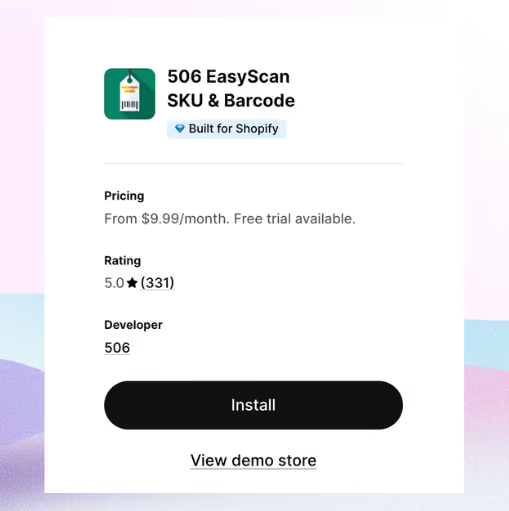
EasyScan is a straightforward scanning app built around order fulfillment and stock updates.
Key features
- Scans multiple barcode formats (UPC, EAN, QR)
- Generates custom barcode labels
- Updates and transfers warehouse inventory by scan
Pros: Simple setup, compatible with most USB scanners.
Cons: Limited forecasting or reporting depth beyond the scan itself.
Pricing: Basic plan from $9.99/month, 10-day free trial.
3. syncX: Easy SKU & Barcode Scan
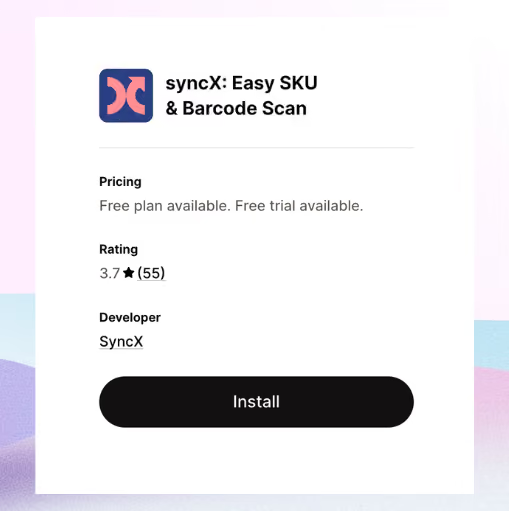
A lightweight scanning app built for quick counts and stock transfers between locations.
Key features
- Scans UPC, EAN, and QR codes
- Adds or deducts inventory in-store
- Exports scan history to CSV.
Pros: Cheap entry point, easy to hand to a part-time or seasonal team.
Cons: Thin on discrepancy tracking and no tie-in to forecasting.
Pricing: From $7/month for up to 2500 products.
4. iPacky
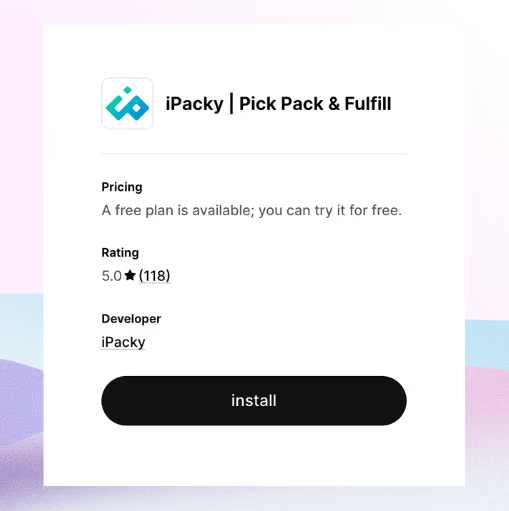
iPacky is built for packing accuracy rather than stocktaking; it scans items during order fulfillment to catch mispacks before they ship.
Key features
- Supports multiple barcodes per product
- Works with scanners that emulate keyboard input
- Reduces packing errors on bundled or multi-supplier SKUs
Pros: Genuinely useful if mispacks are your bigger problem than count accuracy.
Cons: Not built for full physical stocktakes.
Pricing: Paid plans from $19.99/month plus usage fees.
5. StockSavvy
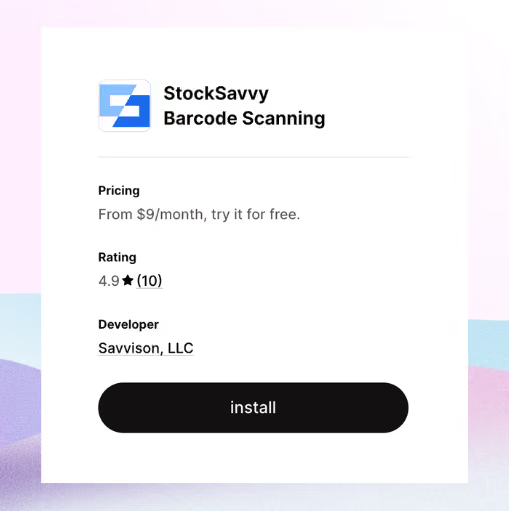
StockSavvy pairs barcode scanning with purchase order receiving and cycle counts.
Key features
- Scan-based cycle counts
- PO creation and receiving
- Scheduled reports for received and incoming items
Pros: Decent middle ground between a pure scanner and a full inventory system.
Cons: Smaller feature set around forecasting compared to Prediko.
Pricing: Tiered from $9/month.
6. Katana
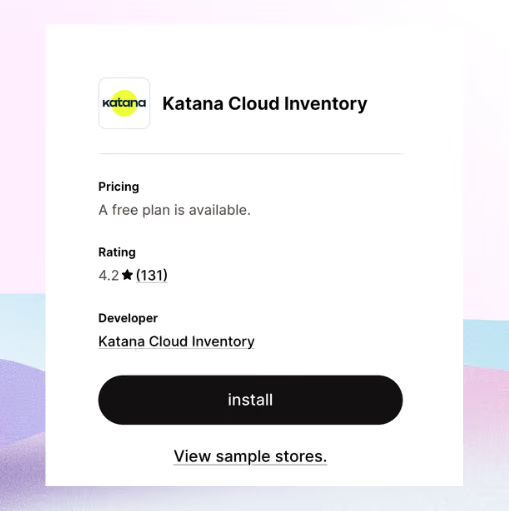
Katana leans manufacturing-first, with barcode scanning as one piece of a broader MRP (manufacturing resource planning) system.
Key features
- Mobile scanning for receiving and picking
- Real-time stock visibility
- Bill of Materials tracking for brands that assemble products.
Pros: Strong fit if you manufacture or assemble your own products.
Cons: Priced and built for manufacturers first, scanning second; expensive if that's not your model.
Pricing: Starter plans from $299/month.
Best Practices for Accurate Stocktakes
Accurate stocktakes depend on more than having the right scanner. A few best practices play a role in preventing discrepancies.
1. Use clean, scannable barcode labels
Print barcodes with black bars on a white background at 300 DPI or higher. Leave clear space, known as a quiet zone, on both sides of the barcode. Colored bars, low-resolution printing, glare, and busy backgrounds can all lead to missed or incorrect scans.
2. Count one location at a time
Complete each warehouse, store, or stockroom separately instead of combining counts across locations. This makes it easier to identify where a discrepancy occurred and prevents stock from being assigned to the wrong location.
3. Set variance rules before the count begins
Decide in advance which discrepancies need to be reviewed. For example, you might investigate any variance above 5% for a SKU, as well as every discrepancy involving high-value or fast-moving products. Setting the rule beforehand keeps the review process consistent.
4. Record the reason for every adjustment
A stock correction should include context, not just a new quantity. Reasons such as counting error, damage, theft, misplaced stock, or an unrecorded transfer require different follow-up actions. Without adjustment reasons, you may fix the number without addressing the cause.
5. Train your team on scanning technique
Users should know how to hold the scanner at the correct angle and distance, sweep across the full barcode, and avoid glare or damaged labels. Consistent scanning habits can prevent more errors than software alone.
6. Review and approve discrepancies before syncing
Do not automatically update inventory as soon as a count is completed. Review major variances, recount questionable items, and confirm adjustment reasons before syncing the final quantities to Shopify.
One System for Stocktakes, Forecasting, Purchasing, and Transfers
Stop relying on disconnected tools that only scan and update inventory numbers in Shopify. The right platform gives every stock adjustment context: what changed, why it changed, and what action to take next.
Prediko carries that information across your entire inventory workflow, from stocktakes and transfers to demand forecasting, purchasing, and replenishment.
See how Prediko’s Stocktake & Inventory Scanner works with a free 14-day trial and manage your inventory from one connected platform.
Frequently Asked Questions
Is there a free app to scan barcodes for inventory?
Yes. Shopify’s mobile app supports basic barcode scanning, while tools like Prediko add stocktakes, barcode printing, audit trails, and synced inventory updates.
How do you barcode your inventory?
Create a unique barcode for each product or variant, print it as a label, and attach it to the item. Prediko lets you scan and print barcodes as part of the same inventory workflow.
How do you activate inventory tracking on Shopify?
Open the product or variant in Shopify, enable Track quantity, enter the stock available at each location, and save your changes.
What barcode scanner do warehouse operators use?
Warehouse teams typically use handheld 1D or 2D scanners, or mobile devices with scanning apps. The best option depends on scan volume, barcode type, durability, and system compatibility.
What app can I use to scan inventory barcodes?
You can use Shopify’s native scanner for basic updates or Prediko for barcode scanning, label printing, stocktakes, variance tracking, and connected forecasting and purchasing.










.avif)