




When Stanley cups went viral on TikTok in late 2023, demand spiked in a matter of days, showing how quickly sales can outpace planning.
Inventory quantity is the number used to determine whether a product is available to sell across locations and channels. When it’s delayed or doesn’t account for committed stock, Shopify can continue accepting orders after real inventory is gone.
We explain how Shopify inventory quantity works and what merchants can do to keep it accurate during sudden demand spikes.
What Is Shopify Inventory Quantity?
Shopify inventory quantity is the number of units Shopify tracks for each sellable item in your store. It determines whether a product can be purchased and how availability is shown across sales channels.
Inventory is managed at the variant level, meaning each size, color, or option combination has its own quantity.
Shopify breaks inventory quantity into clear categories that control availability
- Available quantity: Units that can be sold immediately and appear in stock to customers
- Committed quantity: Units reserved for orders that have been placed but not yet fulfilled
- Incoming quantity: Units expected from suppliers or transfers that aren’t sellable yet
- Unavailable quantity: Units blocked due to damage, holds, or location rules
These quantities directly determine what shoppers see. When the available quantity reaches zero, Shopify can mark an item as sold out or remove it from sales channels.
Common Issues That Affect Shopify Inventory Quantity
Now that we understand how critical this number is, it’s worth looking at why it often becomes inaccurate. Here are some common issues that affect Shopify inventory quantity.
1. Mismatched quantities due to multiple locations
Inventory issues often start when products are stocked across more than one location.
If fulfillment rules, location priorities, or stock transfers are not configured correctly, Shopify may pull inventory from the wrong location or show incorrect availability.
This usually leads to one location overselling while another holds excess stock.
2. Errors from third-party fulfillment apps or integrations
Fulfillment apps, 3PLs, and sales channel integrations sync inventory on their own schedules.
When these syncs lag, fail, or overwrite each other, Shopify can show quantities that no longer reflect actual stock.
This is especially common during high-order volumes or when multiple tools update the same SKUs simultaneously.
3. Data inconsistencies from CSV imports or sync delays
Bulk inventory updates through CSV files can unintentionally reset or overwrite stock levels.
Missing columns, incorrect variant IDs, or delayed imports can cause Shopify to rely on outdated quantities.
Sync delays between systems can also temporarily display incorrect stock levels.
4. Manual entry errors and unrecorded adjustments
Manual inventory updates also introduce risk, especially when they happen outside standard workflows. A missed adjustment, incorrect count, or rushed update can quickly throw quantities off. Over time, these small errors compound and lead to larger mismatches.
5. Issues from unprocessed returns or transfers
Returns and internal stock transfers must be properly received and recorded. When returned items aren’t restocked correctly or transfers remain in a pending state, Shopify inventory becomes inaccurate, often causing sellable stock to be marked as unavailable.
How to Check and Update Shopify Inventory Quantity
We’ll now walk through how to view and update inventory quantities using different methods so you can use the one that best suits your operations.
1. Check and adjust inventory in the Shopify admin
The simplest place to start is the Shopify admin. Under Products, each variant displays its inventory quantity by location, letting you confirm what Shopify considers available before making changes.
If something looks off, you can adjust the quantity directly. Updates apply immediately and affect availability everywhere (from product pages to checkout), making this method ideal for quick fixes after cycle counts or returns.
2. Update multiple products using the bulk editor
When you need to update more than a few SKUs, Shopify bulk edit inventory quantity is the fastest option. It lets you view and edit inventory quantities for multiple products in a single table.
This is commonly used after partial restocks or recounts, when several related variants need to be adjusted together. It reduces repetitive work and makes inconsistencies easier to spot.
3. Use CSV import and export for larger changes
For full audits or warehouse-wide updates, CSV files are typically used. Exporting inventory creates a database of quantities across variants and locations that can be reviewed and adjusted offline.
When the file is uploaded again, Shopify applies the quantities exactly as provided. This makes CSV updates powerful, but also risky if the data is outdated or variant and the location IDs are incorrect.
4. Record adjustment reasons to keep inventory honest
Every inventory change has a reason, even the small ones. Shopify allows you to log adjustment reasons like restock, damage, correction, or return when quantities change.
Over time, these notes reveal a pattern. Ask yourself
- Are the same SKUs adjusted repeatedly?
- Do certain locations require more corrections than others?
- Are returns and transfers being recorded consistently?
The answers often highlight inventory issues before they turn into fulfillment problems.
Note: The Shopify update inventory quantity API also allows developers to programmatically adjust stock levels across products, variants, and locations.
Read More: What is Ghost Inventory & How to Solve it
Managing Shopify Inventory Quantity Across Multiple Locations
Things get more complicated when inventory is spread across more than one location.
Below, we outline how to manage inventory quantities across locations so they stay accurate and orders are fulfilled from the right place.
1. How Shopify tracks inventory per location
Shopify tracks inventory separately for each location. Every product variant has its own quantity at each assigned location, rather than a single global number.
This means the same SKU can be in stock at one warehouse and out of stock at another, with Shopify keeping those quantities independent.
Pro tip: Deactivate locations you no longer use. Leaving unused locations active can create confusion and lead to inventory appearing available when it is not.
2. Setting up, editing, and assigning locations correctly
Locations must be created and properly assigned before inventory can be tracked accurately. Once a location is active, products need to be explicitly stocked there.
If a product is not assigned to a location, Shopify won’t use that stock for fulfillment. Changing location assignments directly affects where inventory is pulled from and where quantities are deducted.
3. Understanding order allocation across locations
When an order is placed, Shopify selects the fulfillment location based on your location priority and fulfillment settings.
If multiple locations carry the same item, Shopify allocates inventory from the highest priority location with available stock. Incorrect priorities can cause orders to pull from unexpected locations.
4. Managing distributed stock and fulfillment settings efficiently
Managing inventory across locations requires tight alignment between stock levels and fulfillment rules.
Location priorities, split fulfillment settings, and transfer workflows all affect how quantities move.
Clear rules help prevent one location from overselling while another holds excess inventory.
How to Prevent Errors in Shopify Inventory Quantity
Inventory errors aren’t rare exceptions; they’re a measurable cost. IHL Group estimates that inventory distortion, largely driven by inaccurate inventory records, costs retailers nearly $1.9 trillion globally each year.
Below are practical ways to keep Shopify inventory quantity accurate.
1. Setting low-stock alerts and discrepancy notifications
Low stock alerts notify you when inventory drops below a set level, giving you time to restock before products sell out. Discrepancy notifications help flag unusual inventory changes, such as sudden drops or negative stock, that usually point to sync or manual errors.
Shopify doesn’t natively support low-stock alerts. But third-party apps allow you to set thresholds on a variant level, instead of using a single blanket number. Tools like Prediko go further by using demand forecasts and lead times to surface stock-out risk earlier.
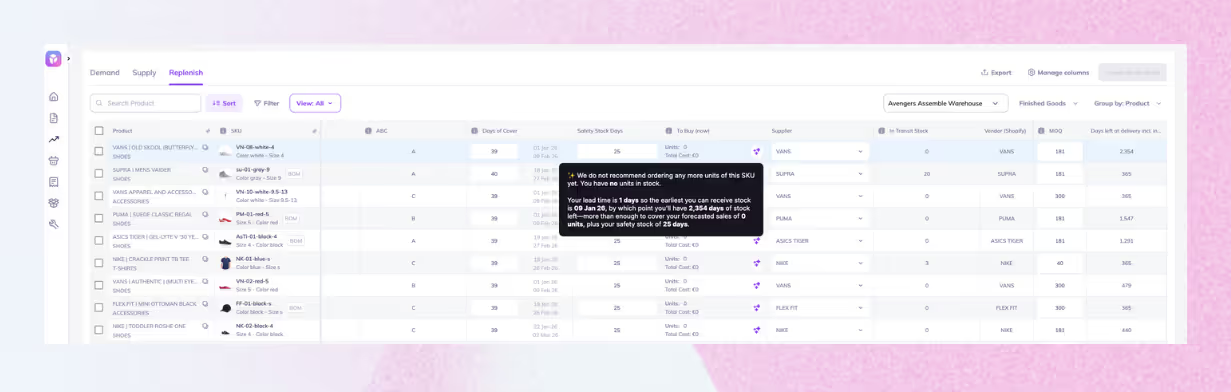
Discrepancies, on the other hand, can be reviewed through Shopify’s inventory history and adjustment logs. Shopify flow inventory quantity changed trigger can also be used to automate actions like alerts or internal notifications whenever stock levels update.
2. Restricting edit permissions for team members
Inventory errors often occur when too many people can edit quantities. Limiting edit permissions reduces accidental or conflicting updates.
Shopify lets you manage inventory access through staff roles and permissions. Most team members can be given view-only access, while edit rights may be restricted to a small group responsible for inventory accuracy. This keeps changes intentional and makes discrepancies easier to trace.
3. Using automation tools for updates and tracking
Once inventory moves between Shopify, warehouses, and fulfillment partners, manual updates introduce gaps. Automation tools solve this by syncing inventory through APIs and integrations, so quantities update as events happen, not hours or days later.
Prediko sits on top of Shopify as an inventory planning and execution layer. It connects Shopify with warehouses, 3PLs, and other systems to keep inventory quantities aligned in real-time.
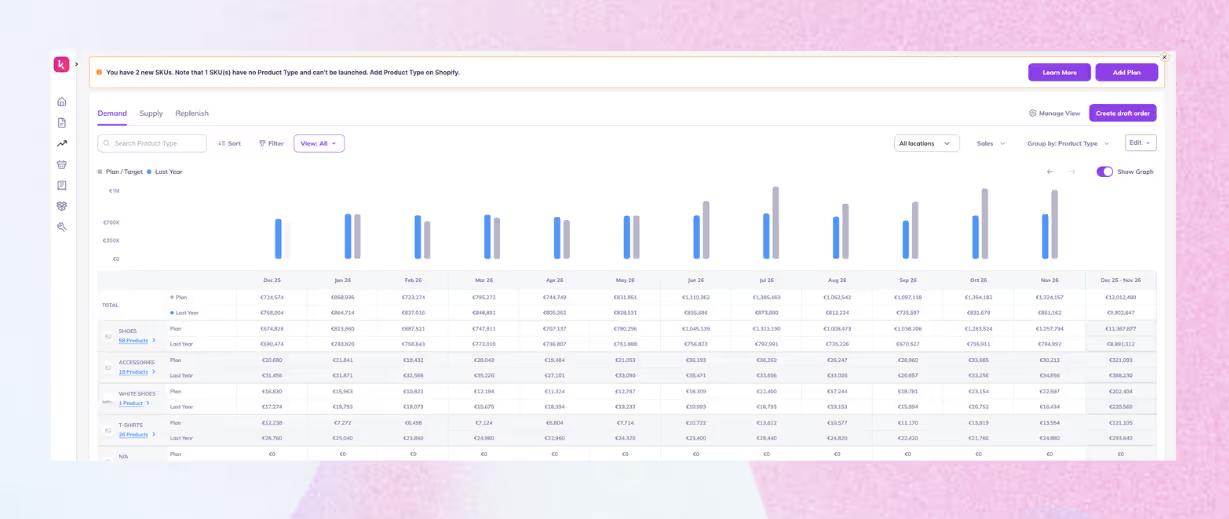
Beyond syncing, it supports inventory decision-making with
- Demand forecasts at the SKU level using live sales data and past trends
- Supply planning based on forecasted demand, lead times, set targets, and budget
- Restocking recommendations for both finished goods and raw materials based on forecasted demand, lead times, and current stock
- Purchase order workflows for creation, tracking, and sharing with suppliers
- 20+ inventory and sales reports for stock health, sell-through, and trends
- Central visibility across stores, warehouses, and locations in one place
This removes the need for spreadsheets, CSV exports, and manual reconciliation. Inventory updates flow automatically, and purchasing decisions stay aligned with actual inventory quantity.
4. Regular reconciliation and stock audits
Even with alerts and automation in place, inventory still needs periodic checks against reality. Reconciliation compares physical stock with Shopify inventory quantities to catch drift caused by returns, damages, missed transfers, or sync gaps.
Stock audits don’t require full shutdowns. Many teams use rolling cycle counts, focusing on a subset of SKUs at a time, especially fast-moving or high-value items, to maintain accuracy without disrupting daily operations.
Regular reconciliation ensures Shopify inventory reflects what can actually be picked, packed, and shipped, not just what systems assume is available.
💡 Download Your Free Inventory Audit Template
5. Train teams on consistent data entry practices
Inventory accuracy depends on consistent updates. Returns, damages, transfers, and manual corrections should follow the same process every time, regardless of who’s handling them.
When teams use different approaches, small gaps add up quickly. Clear guidelines and repeatable workflows reduce guesswork and keep Shopify inventory quantities aligned with what actually happens on the floor or in the warehouse.
Consistency matters more than speed as accurate entries prevent downstream issues in fulfillment and reporting.
6. Keep one source of truth for inventory data
Inventory problems escalate when multiple systems try to decide what is correct. One system should own inventory decisions, while all others sync to it.
Using Prediko as the inventory source of truth centralizes forecasting, purchasing, and restocking decisions in one place. Shopify continues to execute sales and fulfillment, but inventory planning, demand forecasting, and purchase orders follow a single data model.
This prevents overwrites, conflicting numbers, and teams working from different versions of reality, keeping inventory quantity consistent as operations scale.
Should You Display Shopify Inventory Quantity on Product Pages?
Inventory quantity isn’t just an internal number; it can also be a customer-facing one.
‘Show inventory quantity’ on Shopify is a storefront communication choice that controls whether customers see stock availability or urgency messages. This shapes how customers perceive availability, urgency, and trust, so it should reflect how your inventory actually behaves.
However, the first question most merchants face is what they gain and what they risk by showing inventory quantities in real time.
1. Pros and cons of displaying real-time inventory to customers
Showing inventory reassures shoppers that a product is available and orderable. In fact, lower stock can also lead to faster decisions when demand is high.
Problems appear when inventory is volatile. Sync delays, multi-location stock, or pending orders can expose inaccurate numbers. When customers see one quantity and receive a different outcome, confidence drops quickly.
This is exactly why visibility should depend on the reliability of your inventory numbers, not just marketing goals.
2. Adding dynamic inventory messages through Liquid code
Rather than showing raw quantities, many stores use dynamic inventory messages powered by Liquid. This keeps customer-facing messaging tied to actual stock levels without overexposing exact quantities.
Liquid allows inventory text to update automatically based on variant selection and available stock, creating continuity between what Shopify tracks and what customers see.
With this setup
- Inventory messages appear only below the defined thresholds
- Messaging changes by variant
- Text updates automatically as stock levels change
This approach bridges backend inventory data with frontend communication.
3. Deciding between “In Stock” and “Only X left” messages
Once inventory messaging is dynamic, the next decision is tone. “In Stock” works well when quantities fluctuate or when replenishment is frequent. It confirms availability without pressure.
“Only X left” adds urgency but assumes inventory counts are accurate and stable during active shopping periods. This option fits limited runs, fast-selling SKUs, or seasonal items.
The right choice depends on how predictable stock levels are for that product.
4. Balancing transparency and urgency for conversions
Effective inventory messaging ties all of this together. Transparency builds trust and urgency drives action, but both depend on accurate inventory data.
A common approach is progressive disclosure: products display neutral availability messaging at higher stock levels, then shift to urgency-based messaging as quantities fall.
This keeps customer expectations aligned with reality while supporting conversions without overpromising.
How to Use Shopify Inventory Quantity Reports for Better Decisions
Shopify includes built-in inventory reports under Analytics > Reports that show stock levels, movements, and performance by product and variant.
These reports provide snapshots of inventory on hand, average units sold over time, sell-through rates, and historical changes to quantities, helping merchants track what is selling, what is sitting, and how inventory levels evolve over time.
Here’s how you can go about these reports.
1. Analyzing available and committed quantities
One of the most useful views compares available and committed inventory. Available stock represents what can still be sold, while committed stock reflects units already reserved for open orders.
Viewing both together helps explain why a product may show low availability even when physical stock exists. High committed quantities often signal strong demand or fulfillment delays that need attention.
Pro tip: Review committed inventory during peak sales periods to identify fulfillment bottlenecks early.
2. Identifying fast-moving and underperforming SKUs
Inventory reports reveal patterns that are easy to miss when reviewing products one by one. Fast-moving SKUs show frequent stock movement and short time in inventory, while underperforming items remain available for long periods with little sales activity.
This contrast helps distinguish products that need frequent replenishment from those tying up capital without sufficient demand.
Pro tip: Compare inventory age with sales velocity to identify items that appear in stock but rarely move.
3. Using insights to forecast demand and guide purchasing
Once patterns are clear, inventory reports become important for planning, too. Fast-moving SKUs highlight where future demand is likely to concentrate, while slow movers indicate where purchasing should slow or stop.
Over time, these insights help purchasing decisions follow actual sales behavior rather than guesswork, keeping inventory quantities aligned with what customers are buying.
Keep Shopify Inventory Quantity Accurate as You Scale
Inventory quantity is what decides if customers can actually buy what you sell. When stock, demand, and fulfillment fall out of sync, the result is lost orders, wasted spend, and constant manual fixes.
As inventory spreads across locations, warehouses, and channels, accuracy stops being a Shopify setting and becomes an operational discipline. The only way to keep quantities reliable is to align forecasting, purchasing, and stock updates in one place.
Prediko makes that alignment possible. It keeps Shopify inventory quantities accurate across functions, forecasts SKU-level demand, automates purchase orders and restocking, and prevents stock issues before they reach customers.
Start a 14-day free trial today and see how Prediko helps keep Shopify inventory quantity accurate as you grow.










.avif)