




If you ran inventory counts on Stocky, you've probably got a deadline circled on your calendar. Stocky was pulled from the Shopify App Store on February 2, 2026, and it stops working entirely on August 31, 2026.
So the question every retailer is asking right now is simple: what do I count with instead?
The answer is already sitting inside your POS app. Shopify's Quick Count extension lets your team scan and adjust stock straight from the POS screen, and it syncs back to your admin instantly - no juggling two apps, no clipboard math.
You’ll learn how Shopify’s Quick Count extension works, what to set up before using it, how to run your first inventory count, and more.
What is the Shopify POS Quick Count extension?
Quick Count is a POS UI extension that lets you adjust on-hand inventory quantities directly on a Shopify POS device by scanning, using the camera, or searching for products and syncs those changes to your Shopify admin in real time.
It works like a stocktake tool (or cycle count) that helps count physically what's actually on your shelves and in your back room, then corrects your system to match. Get it wrong and you'll oversell a bestseller you don't have, which means awkward refunds, frustrated customers, and a team stuck firefighting.
Quick Count comes included with your POS Pro subscription, and it lives inside the Shopify POS app; there's no separate download. It replaces the in-store counting workflow you used to run through Stocky, and most teams find it better integrated and quicker to use.
What You Need Before You Start
A few things have to be in place, or your counts won't stick. Run through this checklist first:
- A POS Pro subscription. Quick Count is a POS Pro extension. It's bundled in, but you do need the Pro tier.
- Inventory tracking turned on. In your Shopify admin, make sure Inventory tracked is active for the products you're counting. If a product isn't tracked, its count has nothing to update.
- Inventory assigned to your location. Each product needs to be stocked at the location you're counting. If it's not assigned there, it won't show up in the session.
- Up-to-date admin numbers. Complete any pending orders, transfers, and received shipments before you count, so you're not chasing ghosts.
- Charged, synced devices. Charge your POS devices and barcode scanners, confirm they're online, and spot-check a couple of products to make sure POS and admin agree.
💡 Tip: A barcode scanner is a worthwhile investment. Scanning is dramatically faster than searching by hand on a big count. That's the difference between an hour and an evening. For larger catalogs, choosing the right Shopify inventory scanner can make physical stock counts faster and reduce manual counting errors.
How to Activate the Quick Count Extension
You only do this once. Setup happens in your Shopify admin, not on the POS device.
- From your Shopify admin, go to Sales channels > Point of Sale.
- Open Settings, then find the POS apps section.
- Locate the Quick Count extension and activate it. (You may see it as "Start quick count" in the POS editor menu.)
- Click Save.
That's it. The extension is now available inside the Shopify POS app on every device tied to your store. Open POS, and you'll find Quick Count in the app menu. Ready to go!
How to Use Quick Count on Count Day (Step-by-Step)
This is the part you'll actually repeat every count. Here's the full workflow.
1. Open Quick Count on each device
Launch Shopify POS and tap into Quick Count. Confirm the device is on WiFi and set to the correct selling location.
If you're counting with a team, hand each person a device and assign them a zone: a physical area like an aisle, a section, or the back room, so nobody double-counts.
2. Start a new counting session
Tap to start a fresh session on each device. A session is one batch of counting that you'll submit as a unit. Each one holds up to 1,000 variants (a variant is a single sellable version of a product: size Medium, color Blue, and so on).
3. Count each product
For every product in your zone, you've got three ways to add it:
- Scan the barcode with a paired scanner; the fastest method. Each scan bumps the quantity by 1.
- Use your device camera as a backup scanner if your handheld scanner dies mid-count. Slower, but it keeps you moving.
- Search by product name or variant when an item has a missing or damaged barcode.
Enter the actual on-hand quantity you've physically counted, then tap Save to confirm it.
4. Remove or adjust as needed
Miscounted or scanned the wrong item? Tap the product, then tap Remove to take it out of the session. You can re-add and recount it cleanly.
5. Submit the session to sync
When your zone (or your 1,000-variant batch) is done, tap Submit. This is the moment your counts become real. Quick Count adjusts your inventory to match what you counted, and the changes sync to your Shopify admin instantly.
Hit the 1,000-variant cap? You'll see a banner. Just submit that session and start a new one. There's no limit on how many sessions you run, so a 5,000-variant store simply runs five.
Note: Your work isn't saved until you Submit. If a device crashes before you submit, the unsubmitted session is gone and you'll need to recount it. Submit often.
How to Review and Reconcile your Counts
Counting is only half the job. Reconciliation, i.e., comparing what you counted against what your system expected, then investigating the gaps is what turns a count into clean data.
Here's how to close the loop in your Shopify admin:
- Go to Products > Inventory and review the adjustment history for the location, filtered to your count date.
- Open Analytics > Reports and select the Inventory adjustment changes report to see exactly which products changed and by how much. For big catalogs, export them to CSV and sort.
- Flag the real discrepancies. Let’s say, anything off by more than 5% on a product, and physically recount those items.
- Find the cause. Most gaps trace back to theft, damage, receiving errors, mis-logged transfers, or a sale that happened mid-count. Document what you find.
- Schedule the next count. Quarterly works for most retailers; monthly is smarter for small, high-value, high-shrink items.
Quick Count vs. Stocky: what actually changed
If you're migrating off Stocky, here's how the pieces map over. The short version: Stocky's jobs got split across native Shopify tools and the planning piece moved to third-party apps.
For the stock-movement side of that migration, our guide explains the new Shopify POS transfer workflow for creating, fulfilling, receiving, and partially receiving transfers.
Shopify now handles inventory operations: tracking, moving, and counting stock. Quick Count is the counting half of that, and it's good at it. But planning, predicting demand and timing your reorders is no longer built in.
Where Quick Count Stops and Forecasting Begins
Quick Count tells you what you have right now. It can't tell you what you'll need next month.
That's not a knock on the tool; it was never meant to. But it leaves a real gap.
Once your shelves and your system finally agree, you still have to answer the harder questions: Which ones are about to stock out? How much do I reorder, and when? Which SKUs are supposed to be where? What's quietly turning into dead stock and tying up cash?
That's the planning layer. And it's exactly where Prediko comes in.
Prediko is an AI-powered inventory management built natively for Shopify. It plugs into your store, reads your sales history, inventory, seasonality, and velocity shifts, and builds a 12-month demand forecast per SKU, product, and location. It then keeps adjusting as new sales data lands.

So instead of guessing your reorders, you get recommendations on what to buy, how much, and when, factoring in supplier lead times and safety stock.
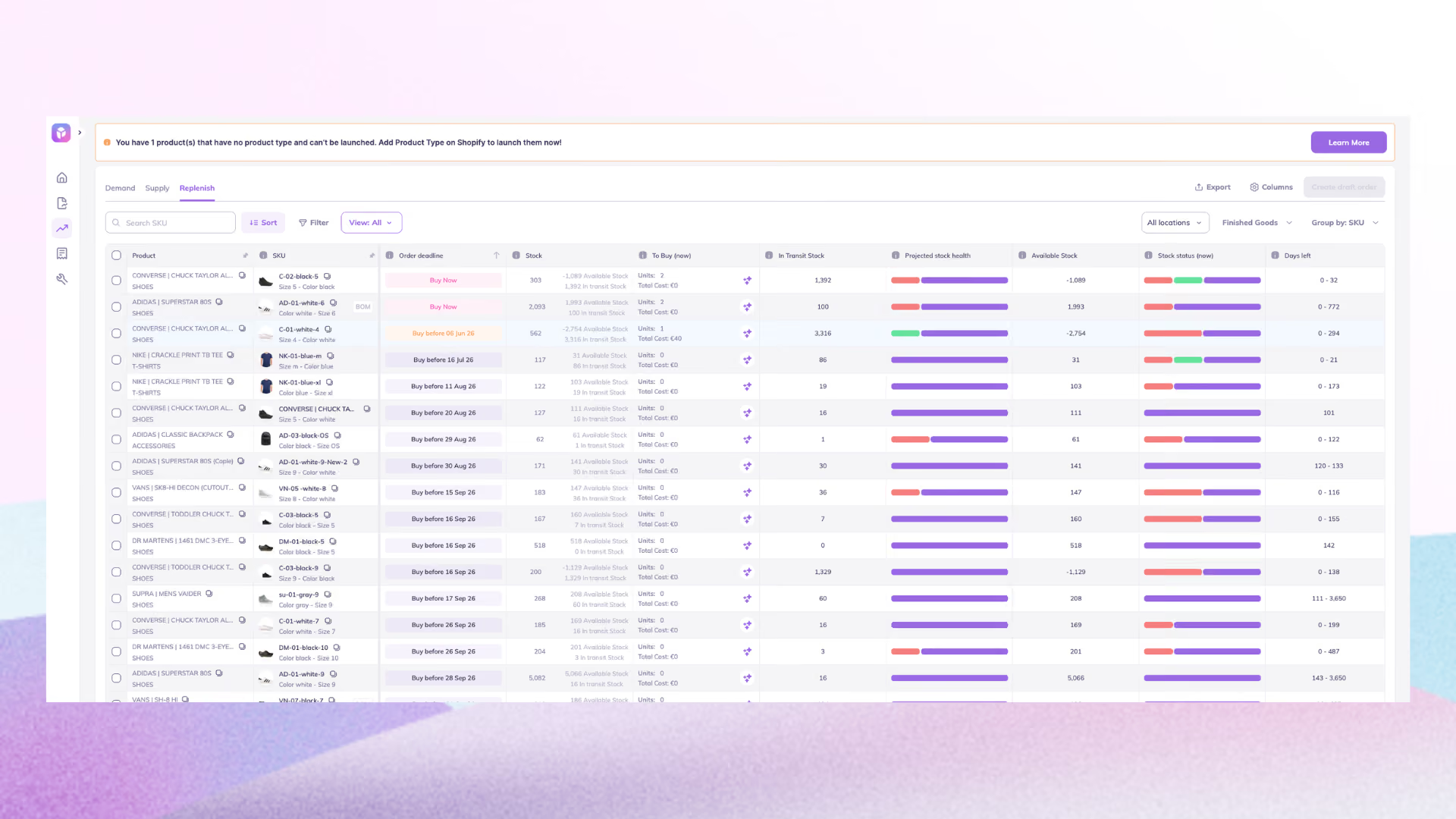
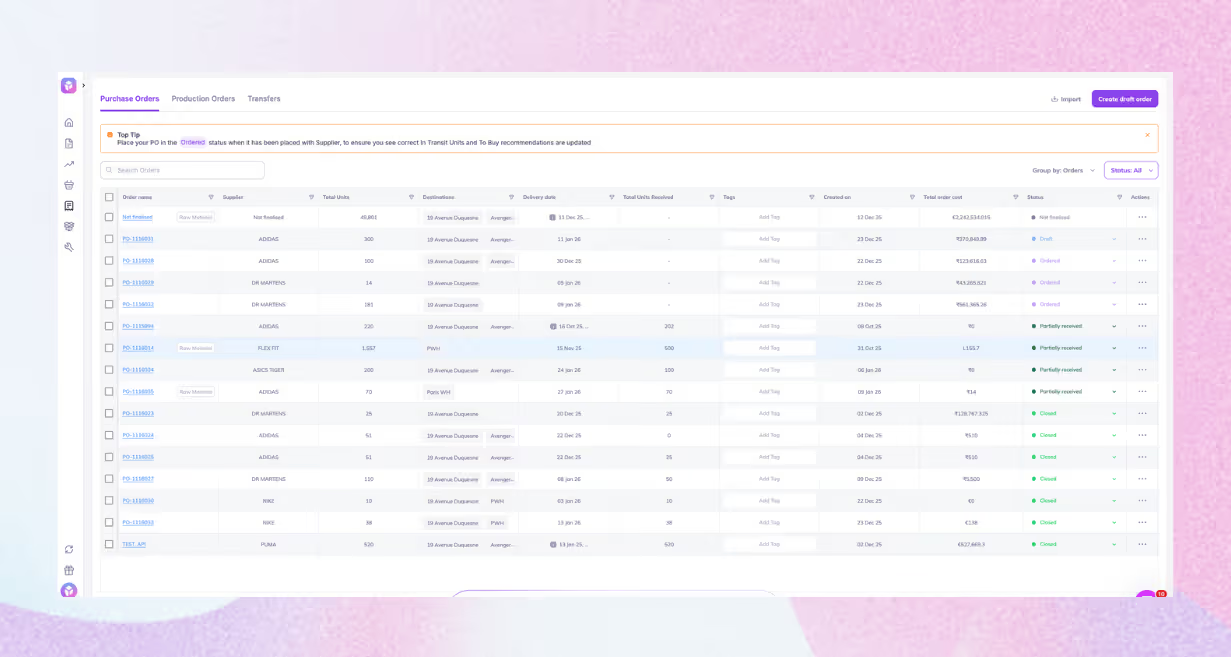
From there, it builds a PO calendar for the entire year, and you can raise purchase or transfer orders right where you forecast, email suppliers from inside the app, export POs as PDFs, and track their status.
In short, let Quick Count keep your counts accurate, and let a forecasting tool decide what happens next. Counting and planning are two different jobs, and you want both done well.
Counting Is Done. Know What You Should Reorder.
The Quick Count extension makes in-store counting genuinely painless: activate it once, scan or search your way through each zone, submit, and reconcile in the admin. With Stocky on its way out, it's the cleanest way to keep your on-hand numbers honest
But accurate counts are the starting line, not the finish. Knowing what's on the shelf is only useful if you also know what to reorder before it runs dry. That's the job Quick Count hands off and the one Prediko is built for.
Want to turn accurate counts into smarter buying: fewer stockouts, less cash tied up, and forecasts that update themselves? Start your 14-day free Prediko trial and see how it fits your workflows from day one.
Frequently Asked Questions
Does Quick Count sync in real time?
Yes. When you tap Submit, your counted quantities adjust your inventory and sync to your Shopify admin immediately. You can review every change in the Inventory adjustment changes report under Analytics > Reports.
Can multiple devices count at the same time?
Yes. Multiple POS devices can run Quick Count sessions simultaneously, and they all sync to the same admin inventory. This is how larger stores stay efficient: assign each staff member a zone and a device, and count in parallel.
What happens if I sell something during the count?
Sales adjust inventory in real time, which is normal. But if a sale happens between when you count an item and when you submit, your submitted count can overwrite that change. To keep it clean, count after hours or during low-traffic periods or recount the affected item.
Does Quick Count work with non-Shopify barcodes?
Yes. It scans any barcode format stored in your product records, UPC, EAN, variant, or custom, as long as the barcode in your system matches the one on the product.
Is Quick Count a full Stocky replacement?
For counting, yes. But Stocky also did light demand forecasting and replenishment, and those don't live in Shopify anymore. For that planning layer, you'll want a dedicated app, see the best Stocky alternatives for Shopify.










.avif)