




Shopify treats products and variants differently. When you add a new item to your store, Shopify automatically creates one variant of that item.
Every product must have at least one variant, because variants represent the actual version of the product that customers purchase.
In other words, the product acts as the parent container while each variant is a child item with its own specific characteristics.
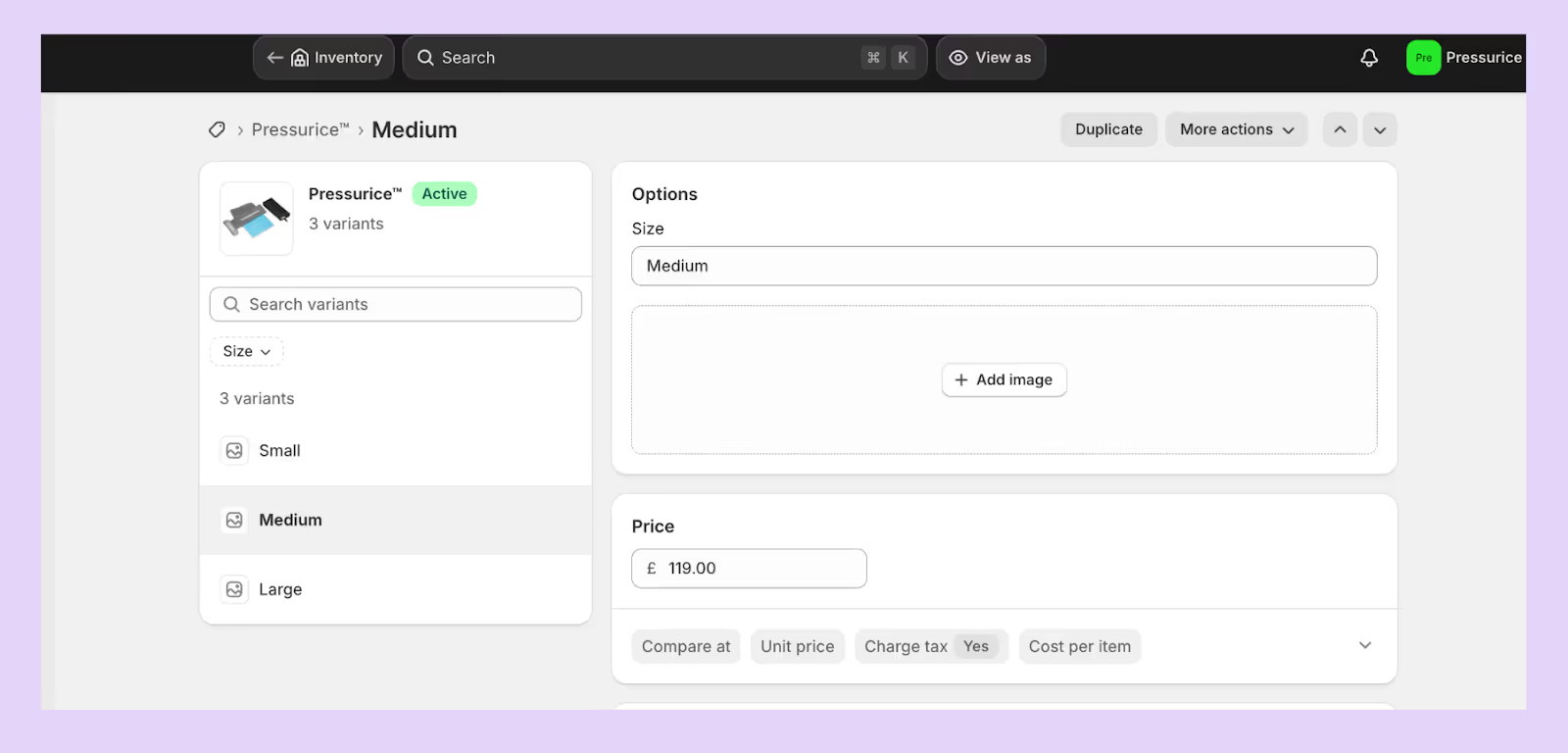
- Products: A product is the overarching item that you sell. It contains general information such as the title, description, brand, product type and collection. Products can have multiple variants, but some products consist of only a single variant (the default variant).
- Variants: A variant is a specific configuration of a product created by combining the product’s option values (e.g., size = small, color = blue). When a product comes in different sizes, colours or other attributes, each unique combination is a variant.
Note: Shopify lets you add up to three option types (such as size, colour or material) per product and supports up to 2,048 variants per product.
Each variant has its own details (such as price, inventory quantity, weight and SKU) that you manage on the variant details page rather than on the product page
Options vs. variants
- Options are attributes of a product, for example, size, colour or material. They define how a product can vary, but by themselves, they don't represent something you can sell. A product can have up to three options.
- Variants are the purchasable versions of the product created from option combinations. Each combination of option values becomes a variant
For example, a T‑shirt with options for size (small, medium, large) and colour (blue, green) has six variants: small‑blue, small‑green, medium‑blue, medium‑green, and so on.
Each variant can have its own price and inventory
What stays at the product level?
The product record stores information that applies to all variants
How is inventory tracked?
Because product records do not include inventory quantities, you cannot track stock at the product level.
When a product has no variants, you set its price, inventory and shipping on the product details page; but once variants are added, you must adjust those settings for each variant.
Inventory is therefore tracked at the variant level
What stays at the variant level?
Variants hold information about each specific version of the product
Important things to note
A product ID identifies the parent product in Shopify’s database, while each variant has its own variant ID. You can find a variant’s ID by clicking the variant in the product details page and looking at the URL – the number after /variants/ is the variant ID.
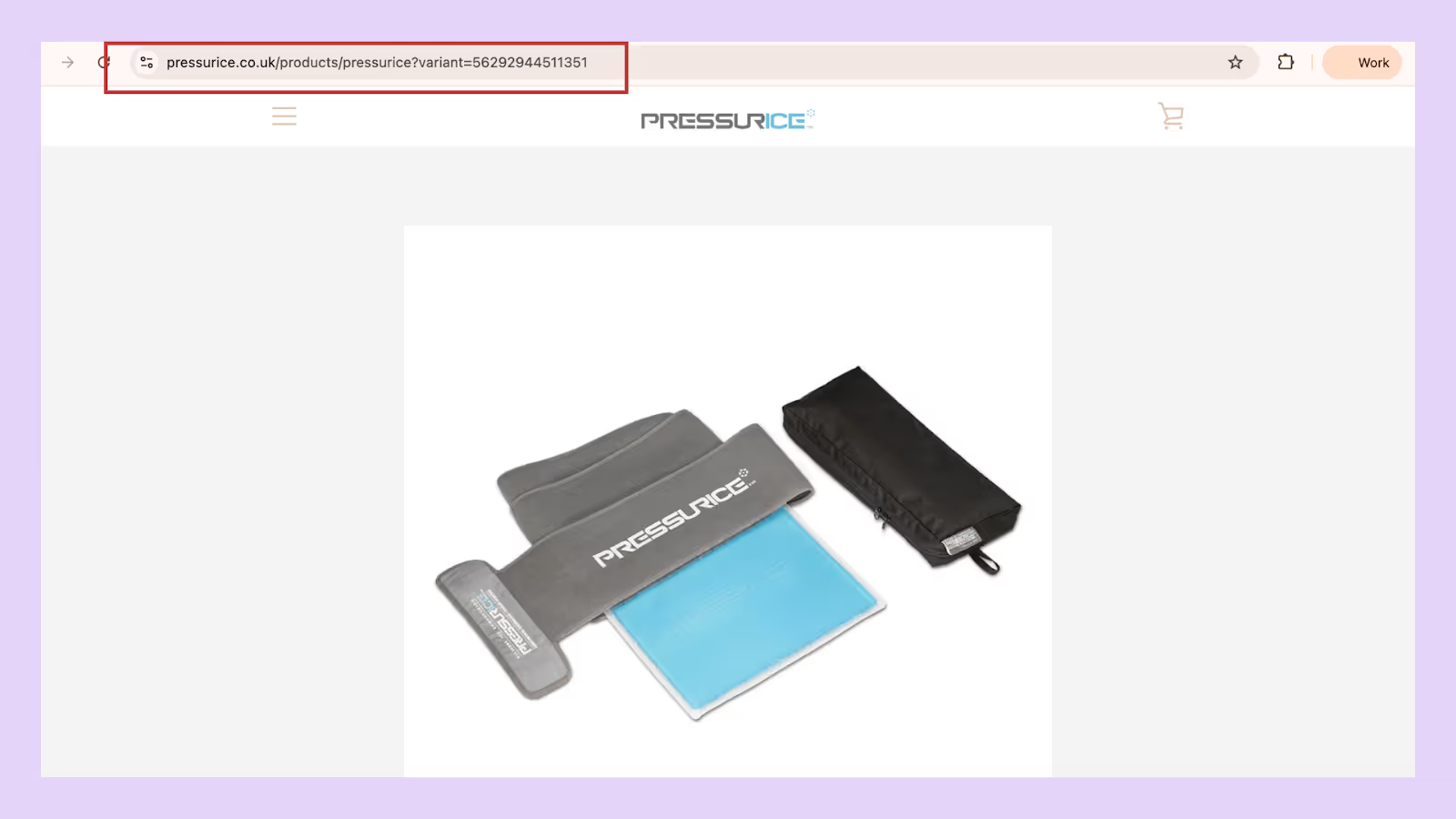
Products without variants still have a default variant ID that can be viewed by appending .json to the product URL and looking for the "variants" → "id" value
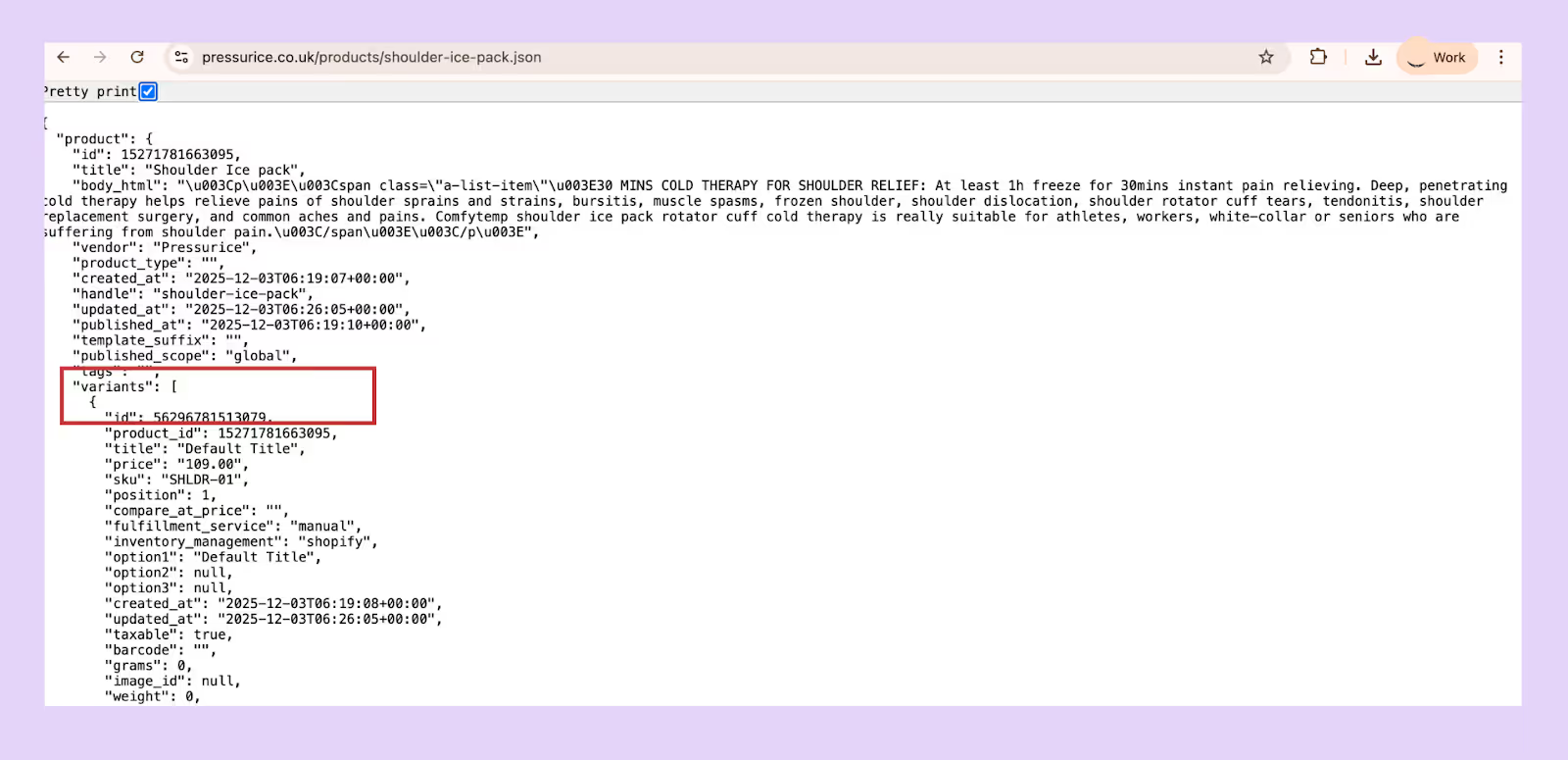
Understanding these identifiers is important when working with CSV imports or API integrations.
Best Practices When Defining Products and Variants
A clear product–variant structure keeps your store organised and your inventory clean. These best practices will help you avoid common setup mistakes.
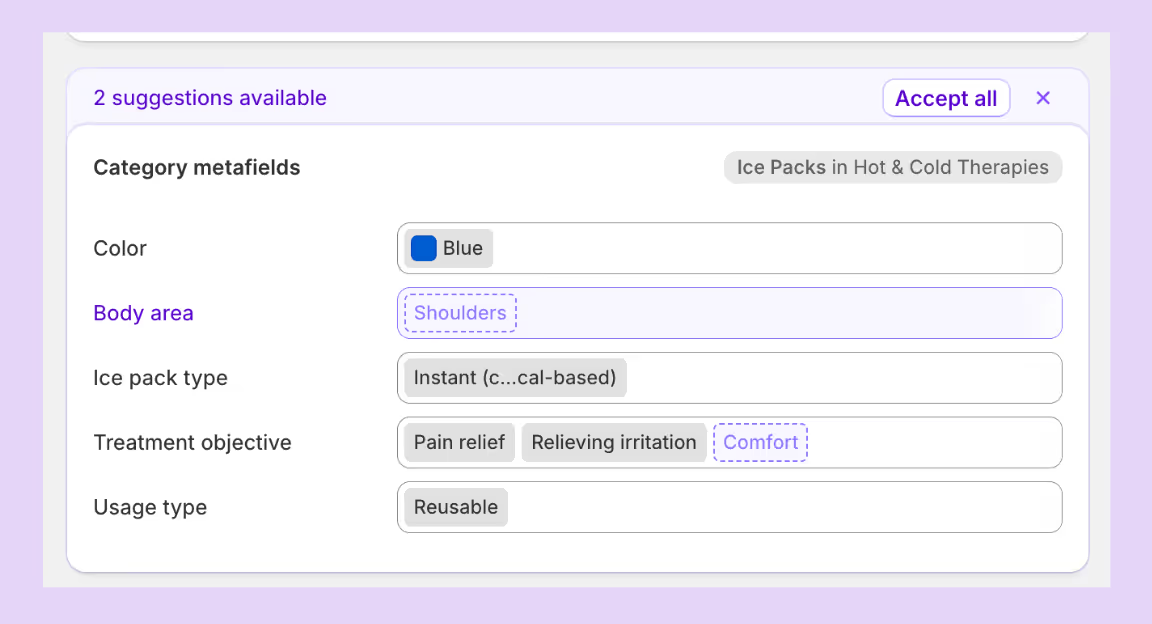
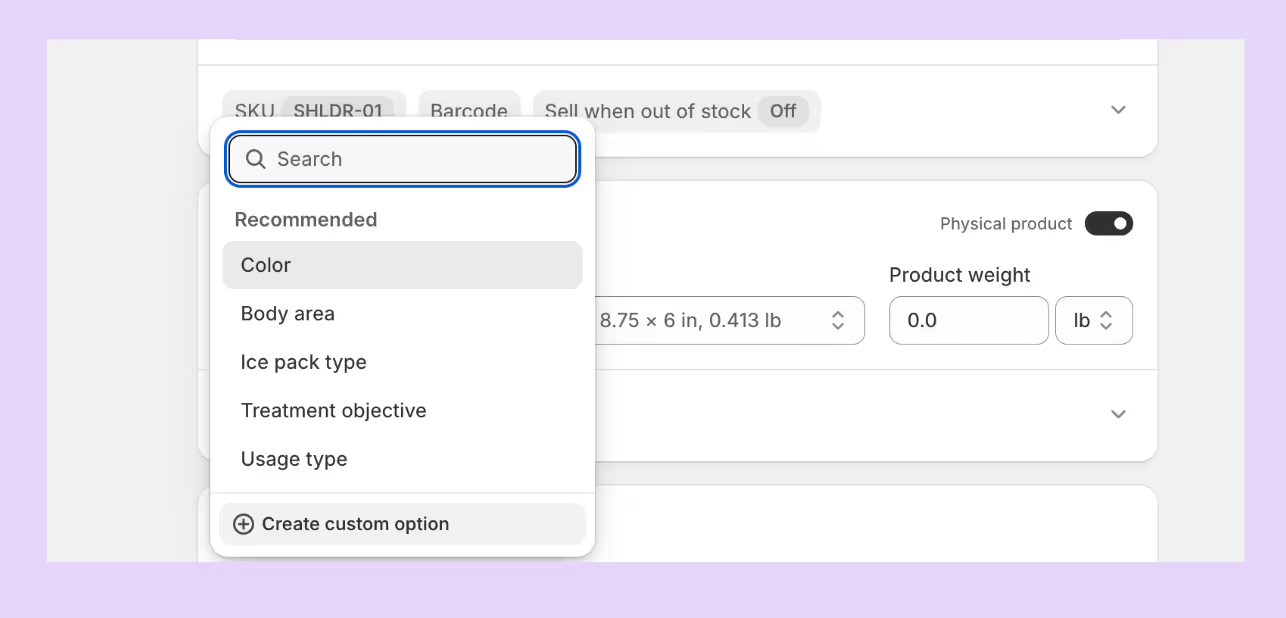
1. Use category metafields for consistent option values
Category metafields let you create reusable option lists (like a master colour list) so your option names stay consistent across products. If you update an entry (say “Cyan” to “Blue”), Shopify automatically updates it everywhere that metafield is used.
2. Turn on inventory tracking and add quantities
Open your product in Shopify, click each variant, and in the Inventory section, enable Track quantity and enter the starting stock. Repeat for every variant. You can update quantities one by one or use the bulk editor/CSV to do it faster.
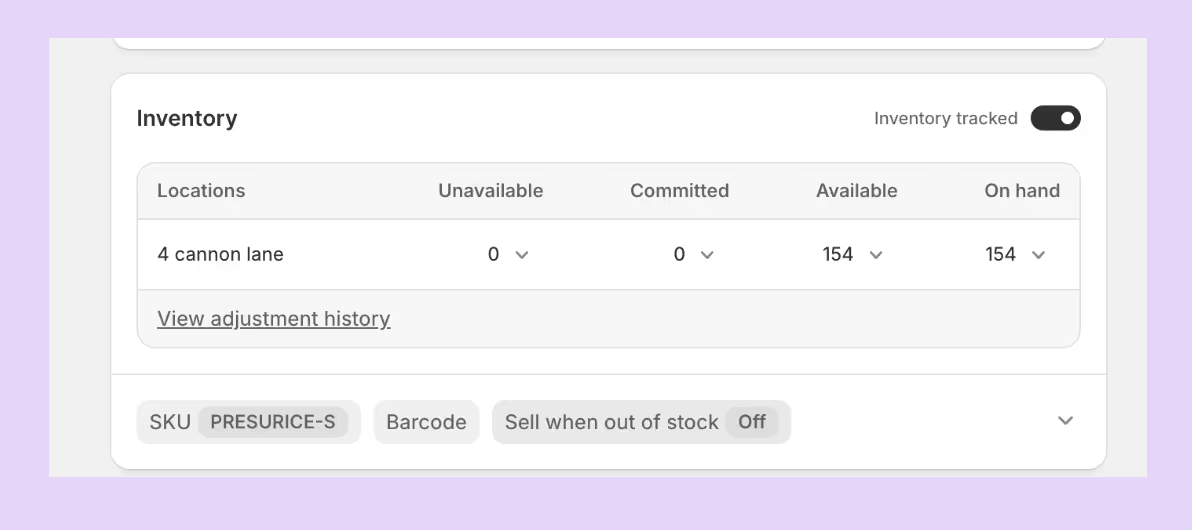
3. Use descriptive SKUs
Design SKUs so you can identify the product, variant options and even location at a glance. This makes stock reconciliation easier and helps when importing or updating inventory via CSV.
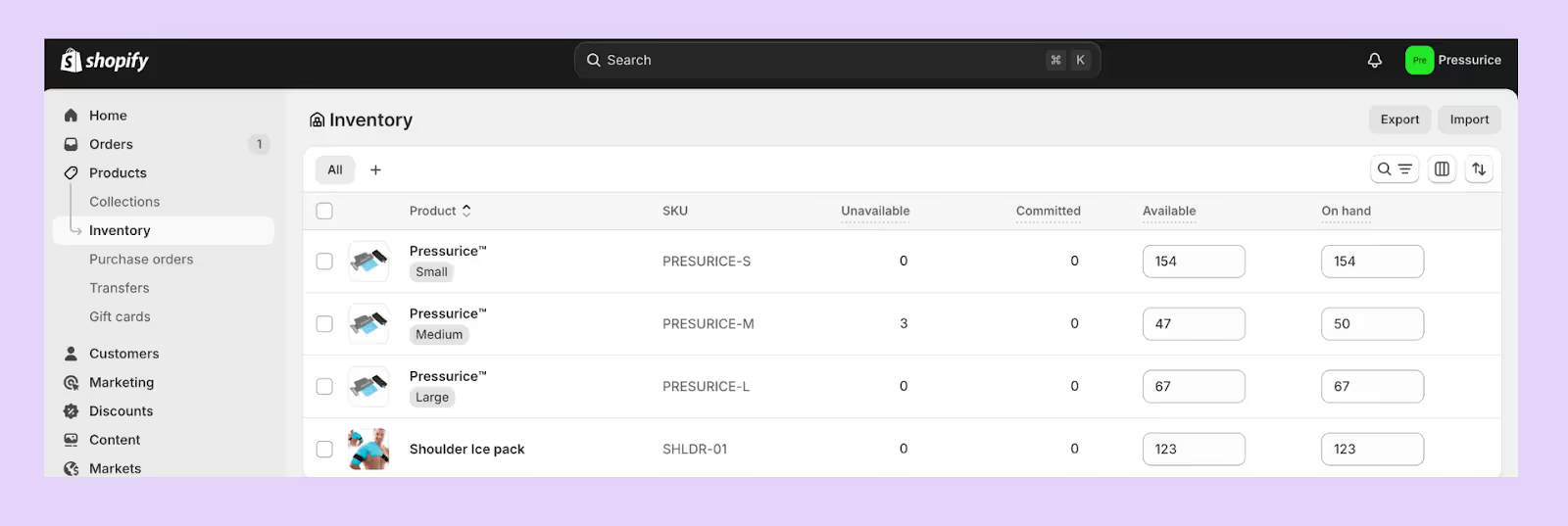
4. Capture custom data with metafields
Use variant metafields to store specialized information such as manufacturing details or internal notes. Variant metafields can be created on the variant details page, but they aren’t displayed to customers.











.avif)